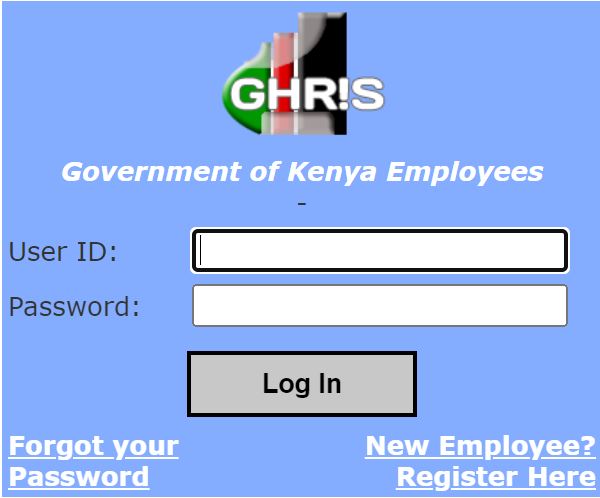
Everything You Need to Know About GHRIS in Kenya: A Human Resource Revolution
It’s early morning at a public office in Kenya. A civil servant logs into the GHRIS portal, sips their tea, and checks their payslip—all before the second sip. That’s GHRIS for you. Fast. Smart. Government-grade efficient.
But what exactly is GHRIS? Why is everyone talking about it in Kenya’s public service circles? And most importantly, how can you use it like a pro?
Let's break it all down in a relatable, bullet-filled, and interactive style that even your HR manager will love.
Need help accessing your GHRIS payslips? Cyber Mfukoni can assist you. Check the service below to get started.
GHRIS Payslips
We provide professional GHRIS payslip access services through the GHRIS portal. Expert assistance wi...
🔎 What is GHRIS?
GHRIS stands for Government Human Resource Information System. It’s an online platform developed by the Government of Kenya to manage all human resource (HR) functions within the public sector.
Think of it as an all-in-one tool where:
Public servants access payslips 📟
Job applicants submit applications 📄
HR managers manage staff data 💼
TSC and other departments update records seamlessly 💼
In short, GHRIS is Kenya’s answer to digitized and centralized human resource management.
👨💼 Who Uses GHRIS?
If you think GHRIS is just for HR officers at the Ministry, think again.
Here’s a quick list of users:
✅ Civil Servants (Ministries, Departments & Agencies)
✅ Teachers under TSC
✅ HR Departments across government institutions
✅ Pensioners managing retirement benefits
✅ New job applicants in public service
Yes, you read that right. Even you can use GHRIS if you’re eyeing a government job.
💡 Why GHRIS Was Introduced
Before GHRIS, HR processes were... let’s say, manila folder-intensive. If you ever tried to get a promotion letter, update your personal details, or even just view your salary slip, you’d need:
Several trips to the HR department
Stacks of photocopied documents
Handwritten letters
Waiting in queues for hours
Days or even weeks of follow-up
Not to mention, files would get lost, approvals delayed, and transparency was minimal. Ghost workers thrived, and discrepancies in payroll were common.
Enter GHRIS—with these goals:
✔ Eliminate paperwork delays
✔ Boost transparency in HR processes
✔ Reduce ghost workers and payroll fraud
✔ Centralize employee records
✔ Support real-time data updates
This transformation wasn’t just about tech—it was about building trust, enhancing service delivery, and aligning HR with Kenya’s broader digital agenda.
It’s part of Kenya’s e-Government strategy to modernize services.
📲 Key Features of GHRIS
This isn’t just any portal—it’s a powerhouse of digital HR tools.
Here are the top features you’ll love:
📅 Online Payslips – Say goodbye to lost payslips
📂 Staff Record Updates – Update your bio-data without a physical visit
🏖 Leave Management – Apply and track leave status online
📟 P9 Forms – Download tax forms for KRA filing
💼 Job Applications – Apply for government jobs through GHRIS
📜 Appointment & Promotion Letters – View and print
🔐 Secure Login – Your data, your control
🖥️ How to Register on GHRIS
Let’s get interactive. Grab a notebook (or don’t—just bookmark this).
Here’s a step-by-step guide:
✅ Visit www.ghris.go.ke
✅ Click on "First Time Registration"
✅ Fill in:
ID Number
KRA PIN
Date of Birth
Work station/ministry
✅ Create a username and password
✅ Submit and confirm via email (if prompted)
Boom! You’re in.
💡 Pro Tip: If you're already in public service, use your official details exactly as they appear in your HR records.
🔐 Logging In to GHRIS Like a Pro
Let’s say you’re now registered and ready to take full advantage of what GHRIS offers. Logging in shouldn't be a hassle—and with the right approach, it won’t be.
Here’s how to log in efficiently every time:
✅ Open your browser and go to www.ghris.go.ke
✅ On the homepage, locate the login section
✅ Enter your username and password exactly as created during registration
✅ Click the "Login" button
✅ If you forgot your password, click on "Forgot Password" and follow the prompts to reset it
🎯 Top Tip: Save your credentials securely. Use a password manager or jot them in a safe offline location. Don’t share them with anyone.
If login problems persist, visit your HR department or get help from Cyber Mfukoni—we’re always ready to assist you!
💵 Downloading Your Payslip
Possibly the #1 reason most public servants love GHRIS is the instant access to payslips. No more waiting for HR to print and stamp it. No more excuses from the accounts office. It's all in your hands now.
To download your payslip, follow these simple steps:
✅ Login to your GHRIS account at www.ghris.go.ke
✅ Navigate to the “My Payslip” section in your dashboard
✅ Select the month and year you need the payslip for
✅ Click the “Generate Payslip” button
✅ Once it appears, hit “Download” or “Print”
🎯 Quick Tip: Ensure your browser’s pop-up blocker is off or it may prevent the payslip from opening.
📝 Applying for Leave on GHRIS
Yes, even your sick leave can now be digital.
Here’s how:
✅ Login to your account at www.ghris.go.ke
Start by opening a secure browser like Chrome or Firefox. Navigate to the GHRIS homepage and input your username and password. If you’ve forgotten your login details, use the "Forgot Password" feature or get help from your HR officer—or just drop by Cyber Mfukoni for instant assistance.✅ On the dashboard, locate and click “Leave Application”
Once logged in, your dashboard displays several tabs. Look for “Leave Management” or “Leave Application”—it’s usually in the side or top menu. Click on it to begin your request. If you can’t find it, the platform may be undergoing updates; in such cases, refresh your browser or clear cache.✅ Choose the type of leave you need
This is a crucial step, so choose wisely based on your situation. Here's a breakdown of the most common options:🌴 Annual Leave: Ideal for personal rest or holidays. Make sure to plan in advance—many departments require early notice for scheduling.
🤒 Sick Leave: If you’re unwell, this option allows you to stay home and recover. Always be ready to attach a doctor’s note or medical report.
👶 Maternity/Paternity Leave: For new parents—this comes with specific timelines. Maternity leave typically spans three months, while paternity is usually two weeks.
😢 Compassionate Leave: Granted during bereavement or family emergencies. Attach any relevant documentation (e.g., death certificate or a letter from your chief).
📚 Study Leave: If you’re pursuing further education, attach admission letters and proof of study. Note that long-term study leave might require additional Ministry approval.
📝 Tip: If you're unsure which category your situation fits under, confirm with HR before submitting.
✅ Fill in the start and end dates
Use the calendar tool provided on the form. Be accurate—include only official working days (excluding weekends and public holidays unless otherwise allowed). For example, if your leave is from Monday to Friday, don't count Saturday unless your office operates weekends.Incorrect date entries may delay or nullify your application.
✅ Enter a short reason or remarks
This section isn’t for storytelling—keep it brief and professional. Examples:“Family emergency”
“Medical procedure”
“Attending graduation ceremony”
“Traveling upcountry for annual leave”
Clarity and honesty go a long way in speeding up approvals.
✅ Attach any required documents
Depending on your leave type, the system may ask you to upload supporting documents:Medical reports or doctor’s letters for sick leave
Birth certificates for maternity/paternity leave
Admission letters for study leave
Letters from local authorities for compassionate leave
📎 File Format Tip: Ensure documents are in PDF, JPG, or DOC format and under the system’s size limit (usually 5MB). File names should be simple, e.g., “Doctor_Letter.pdf.”
⚙️ Having trouble converting your documents? Cyber Mfukoni can scan, resize, and upload them for you in minutes.
✅ Click “Submit”
Review everything before submitting—especially dates and attachments. Once you click “Submit,” your request will be routed to your supervisor or designated officer for approval.You can monitor your application’s progress via the dashboard under “Leave History” or “Application Status.” You’ll see updates like:
Pending
Approved
Rejected (with reasons)
🎯 Bonus Tip: Always submit leave early, especially for annual or study leave. Emergencies are understood—but planned leave should be timely.
⚠️ Always ensure your supervisor is looped in for approvals.
🧲 Accessing Your P9 Form for KRA
No more chasing down HR for your tax documents.
Steps:
🧾 Accessing Your P9 Form for KRA Filing
Tax season doesn't have to be stressful—at least not when you’re a public servant using GHRIS. Your P9 Form, which is essential for filing annual returns on KRA iTax, is just a few clicks away.
Follow these simple steps to retrieve it:
✅ Log in to your GHRIS account
Head over to www.ghris.go.ke and enter your login details. If you're having trouble logging in, reset your password or visit your HR department. Alternatively, walk into Cyber Mfukoni—we’ll help you access your account and get your tax forms sorted in no time.
✅ Go to the “Tax Details” section
Once you’re in the dashboard, look for a tab labeled “Tax Details” or something similar. It's usually under your profile menu or as a standalone menu item. Click on it to access tax-related options.
✅ Click on “Download P9 Form”
You’ll see a list of tax documents. Find and select the “Download P9 Form” button. This form contains all your earnings, allowances, and deductions for the year, which KRA uses to assess your income tax.
💡 Tip: Ensure your records are up to date—if your allowances or benefits have recently changed, confirm with HR before using the form.
✅ Choose the relevant tax year
You’ll be prompted to select the tax year you’re filing for—usually the previous calendar year (e.g., 2024 when filing in 2025). Double-check to avoid downloading the wrong form.
✅ Save the P9 Form for KRA iTax upload
Once downloaded, save it to a secure folder on your computer or flash drive. You’ll need to upload this document when filing your returns on itax.kra.go.ke.
📂 File format: The form typically downloads as a PDF—make sure not to alter or tamper with it.
Need help filing your KRA returns? Cyber Mfukoni offers full support—P9 download, iTax filing, printing, and submission, all under one roof.
🎯 Final Thought: Don’t wait until June to start running around looking for your tax details. Download your P9 early, review it, and file with peace of mind.
🎉 Quick tip: Always check if your allowances are correctly captured on your P9.
📈 Benefits of GHRIS to the Government
Let’s flip the coin. Why does the GoK love GHRIS?
✔ Eliminates ghost workers
✔ Tracks performance appraisals
✔ Simplifies promotions and transfers
✔ Increases payroll accuracy
✔ Improves reporting with real-time analytics
It’s digital governance at its best.
🤝 How Cyber Mfukoni Can Help
Not everyone is tech-savvy or has reliable internet at home.
That’s where Cyber Mfukoni steps in:
💻 Assist in GHRIS registration and login recovery
🗄️ Print payslips, P9 forms, and leave approvals
🔗 Help with uploading required documents
🔍 Guide you through troubleshooting login issues
💼 Visit Cyber Mfukoni today and let us help you navigate GHRIS with ease!
🙋 Common GHRIS Challenges and Fixes
Even the best systems can have their off days—and GHRIS is no exception. Whether you’re a new user or a seasoned public servant, you may encounter one or more of these hiccups while using the platform.
Let’s explore the most common issues and what they actually mean:
🚫 “Invalid login credentials”
This error usually pops up when:
You’ve mistyped your username or password
Caps Lock is accidentally on
You’re using the wrong browser (some browsers don’t support GHRIS well)
You’re entering details different from those used during registration
🛠️ Fix:
Double-check your login details and try again. If the problem persists, reset your password using the "Forgot Password" option. Still stuck? Pass by Cyber Mfukoni—we’ll help you log in securely and recover access.
🚫 “Account not found”
This one can be frustrating. It typically means:
Your HR department hasn’t uploaded your records into the system
You’re using incorrect ID or KRA PIN during first-time registration
There’s a mismatch in your official employment details
🛠️ Fix:
Visit your HR office to confirm if your details are already in GHRIS. If you're still setting up for the first time, make sure the exact ID, name, and KRA PIN match your official government records.
🚫 Payslip not generating
You click “Generate Payslip”... and nothing happens. This can result from:
Browser pop-up blockers preventing the new window
Technical issues with GHRIS server
Unavailable payslip data (e.g., if salary hasn’t been processed for that month)
🛠️ Fix:
Turn off pop-up blockers in your browser settings. Try using Chrome or Firefox. If the payslip still doesn’t load, it may not have been uploaded yet—check back after a few days or consult HR.
Need to print it urgently? Walk into Cyber Mfukoni—we’ll troubleshoot and print it for you instantly.
🚫 Wrong data in profile
Imagine seeing someone else’s name or the wrong job title on your profile. That’s not just confusing—it can affect your entire HR record.
🛠️ Fix:
Report any incorrect information to your HR department immediately. They are the only ones authorized to update your official records in GHRIS. You can’t edit core profile data like your name, job group, or department from your end.
Pro Tip: Periodically log in to GHRIS and check your details to catch errors early.
🧭 In Summary:
❌ Error | ✅ Likely Fix |
|---|---|
Invalid Credentials | Reset password or recheck login inputs |
Account Not Found | Confirm details with HR or re-register |
Payslip Not Loading | Disable pop-ups, try again later |
Profile Errors | Notify HR to update your information |
✅ Always use the recommended browser—Chrome or Mozilla Firefox.
💬 Real Experiences: What People Are Saying
"Before GHRIS, I had to travel to Nairobi for a simple payslip. Now? I download it from my village in Elgeyo Marakwet." – Ruth, Civil Servant
"It took me 3 minutes to apply for leave. I even got a confirmation SMS the next day!" – Joseph, Ministry of Agriculture
🌐 Related Platforms Integrated with GHRIS
GHRIS doesn’t work alone. It syncs with:
🔗 KRA iTax System – For P9 and tax declarations
🔗 Public Service Commission (PSC) Portal – For job applications
🔗 National Treasury Systems – For payroll processing
🔗 TSC Portal – Teacher HR management
It’s a web of digital governance magic.
📍 Visit Cyber Mfukoni for Fast GHRIS Help
Stuck somewhere in your GHRIS journey?
Cyber Mfukoni offers:
One-on-one support
Professional document handling
GHRIS registration help
Payslip and P9 printouts
🚀 Walk in today and experience digital HR support, the Kenyan way.
📆 Summary Table: Why GHRIS is a Game-Changer
GHRIS Benefit | Description |
|---|---|
✅ Digital Payslips | Instant access, downloadable anytime |
✅ Leave Management | Apply and track online |
✅ Transparency | Real-time HR updates |
✅ Integration | Works with KRA, PSC, Treasury |
✅ Cost-saving | No travel or queues |
Looking to register on the GHRIS platform? Cyber Mfukoni can help you get set up. Check the service below.
GHRIS Registration
We provide professional GHRIS registration services through the GHRIS portal. Expert assistance with...
🙏 Final Thoughts: Embrace the Digital Era
GHRIS is no longer the future—it’s the present. Whether you're checking your salary, applying for leave, or preparing for a promotion, it’s your gateway to hassle-free government service.
So next time someone asks “What’s this GHRIS thing?”, just send them this guide—or better yet, refer them to Cyber Mfukoni for real-time support.
And remember…
✨ When in doubt, Cyber Mfukoni’s got your back!
About the author
Julius
IT & E-Government Services Specialist
Julius is a Nairobi-based IT specialist with over a decade of hands-on experience navigating Kenya's digital government platforms — eCitizen, NTSA TIMS, KRA iTax, and the Business Registration Service (BRS). He has helped thousands of individuals and businesses cut through the paperwork to access government services online and writes practical, step-by-step guides drawn from that day-to-day experience.
Related Agency
TSC - Teachers Service Commission
TSC
We provide professional online TSC services including teacher registration, TSC number applications, GHRIS registration, payslip downloads, and leave applications. Fast, reliable assistance for all teachers.
View Agency ServicesRelated Services
Need Expert Assistance?
Our team can handle the entire application process for you.