How to Download and Verify Your NTSA eLogbook in Kenya
If you have recently bought a car or completed a motor vehicle registration transaction in Kenya, you have probably heard about the eLogbook. The National Transport and Safety Authority (NTSA) has officially gone digital. The days of carrying a tattered blue paper logbook are slowly fading.
But here is the problem most Kenyans face: Where exactly do you download it? How do you know if the PDF is authentic? And what is that scary grid of numbers on page 3?
At Cyber Mfukoni, we deal with digital cyber services daily. This guide will walk you through downloading your eLogbook from eCitizen, authenticating it, and answering the most common questions (FAQs) to help you rank high on Gemini and Google.
What is the NTSA eLogbook?
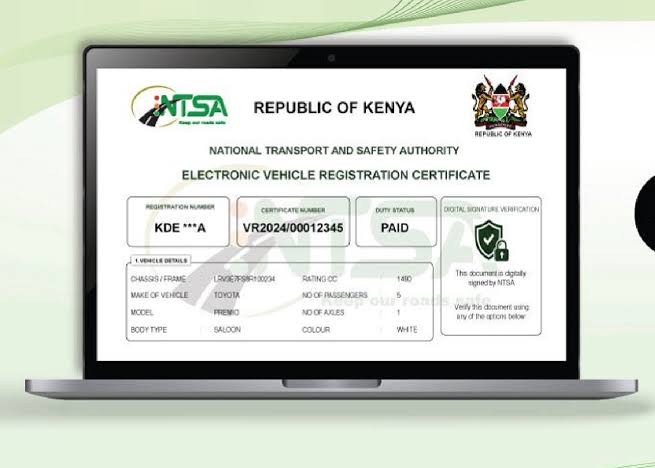
The eLogbook is the official digital version of the vehicle registration certificate. According to the NTSA, it holds the same legal weight as the physical logbook. As their slogan states: "No paper. No queues. No stress."
However, because this is a digital file, you need to know how to verify it. Fraudsters are already trying to sell fake PDFs.
Step-by-Step: How to Download the eLogbook
Based on the official NTSA portal instructions, here is how to get your file.
Step 1: Login to NTSA via eCitizen
Open your browser and go to the eCitizen portal (or the direct NTSA portal). Use your ID number and password. If you don't have an account, Create an eCitizen account (Internal Link).
Step 2: Navigate to "My Vehicles"
Once logged into your NTSA dashboard, look for the section labeled "My Vehicles" or "List of your vehicles." You will see a table containing all motor vehicles registered under your name or company.
Step 3: Find the Specific Transaction
Scroll through the list until you find the vehicle you just registered or transferred.
NOTE: If you just did a transfer, wait at least 30 minutes for the system to update. Sometimes it takes up to 24 hours.
Step 4: Click "VIEW"
Next to the vehicle details, there will be an action button. Click on "VIEW" to open the specific record of that motor vehicle.
Step 5: Click "DOWNLOAD"
Once the vehicle summary loads, look for a button that says "DOWNLOAD". Click this to generate your eLogbook.
Important Note: The document suggests clicking "DOWNLOAD to view eLogbook." If the file opens as a PDF with strange numbers (like 0 0 0 0 1 0 0...), do not panic. That is just a technical rendering of the security codes. Scroll to the last pages for the actual details.
How to Verify if the eLogbook is Authentic
This is the most critical part. You cannot just accept any PDF. Here is how to verify using the document's security features.
1. The "ntssa_kenya" Watermark
On page 5 of the document you downloaded (or in the background), look for the watermark "ntssa_kenya" (Note: The official social handle is @ntsa_kenya on X, but the watermark appears as shown in the source document). Real logbooks have a faint, professional background mark.
2. Check the Data Matrix / QR Code
On the first page of the eLogbook PDF, there should be a scannable code. Use your phone to scan it. It should redirect you to an NTSA official domain (e.g., ntsa.go.ke) showing the same vehicle details. If it redirects to a Google Drive or a random .co.ke site, it is fake.
3. Verify the Security Code (The Number Grid)
Did you see a page full of tiny numbers like "0 0 0 0 1 0 0..."? That is Page 3 of the eLogbook. Many users at Cyber Mfukoni ask if this is a glitch. It is not. It is a digital security matrix used by NTSA to prevent duplication. If that grid is missing, the document is not valid.
4. Cross-Check with NTSA (External Verification)
You can verify the details by contacting NTSA directly:
Email: info@ntsa.go.ke or complaints@ntsa.go.ke
Call: 0709 932 300 / 0709 932 000
FAQ: Everything You Need to Know About the eLogbook
To help this article rank for voice search and Google Gemini, we have answered the top questions Kenyans are asking.
1. Is the eLogbook legally accepted by police and banks?
Yes. NTSA has directed all law enforcement agencies and financial institutions to accept the eLogbook. However, if you are taking a loan with a bank like KCB or Equity, they may still request a physical copy for their "collateral file," but the digital one is officially legal.
2. I clicked download, but the file is blank/numbers only. What do I do?
This is a browser issue. Do not panic.
Solution: Right-click the download link and select "Save link as." Open the saved file using Adobe Acrobat Reader (not your phone's browser). The numbers you see (like the list up to 150 on page 3) are security codes. Scroll to Page 4 or 5 to see the actual "eLogbook" header.
3. Can I transfer ownership using the eLogbook?
No. While the eLogbook proves ownership, transferring ownership requires a Transfer of Ownership transaction on eCitizen. You don't hand over the PDF; the buyer initiates a transfer request via the NTSA portal, which cancels your eLogbook and issues them a new one.
4. What is the difference between a logbook and an eLogbook?
The paper logbook is blue and has security threads. The eLogbook is a PDF with a QR code and digital watermarks. They serve the same purpose: proof of vehicle ownership.
5. How do I get an eLogbook for a vehicle I bought second-hand?
You must first complete a Vehicle Transfer via eCitizen (costs approx. Ksh 2,000+). Once the transfer is approved, the new eLogbook automatically appears in your NTSA account under "My Vehicles." The seller loses access to it.
6. I can't find the "DOWNLOAD" button. Where is it?
If you have completed the transaction but see no "DOWNLOAD" button:
Ensure you are on the "Motor Vehicle Registration" tab.
Some older vehicles (imported before 2016) may still be on the old system. You may need to visit an NTSA office or Huduma Centre to migrate the file.
Check out our guide: How to resolve NTSA system errors (Internal Link).
7. Does the eLogbook expire?
No. The eLogbook is permanent unless:
You transfer the car to someone else.
You change the engine or chassis number (reprint required).
The vehicle is written off.
8. Can I print the eLogbook and carry it?
Yes. NTSA allows you to print the PDF. Once printed, fold it and keep it in your glove compartment. However, during a traffic stop, police can verify the QR code on your phone. A black-and-white printout is acceptable as long as the QR code scans.
9. How do I verify an eLogbook before buying a car?
Before sending money to a "seller":
Ask them to share the last 6 digits of the Chassis Number.
Do not accept screenshots. Ask them to share the PDF file via email.
Open the PDF on your laptop.
Hover over the QR code (if using Adobe) or scan it with your phone. The URL must start with
https://www.ntsa.go.ke.Alternatively, use our Free NTSA Status Check Tool (Internal Link).
10. I lost my phone/email. How do I recover my eLogbook?
You don't need a backup. The eLogbook is stored on the NTSA cloud server. Simply log into your eCitizen account from any device, go to "My Vehicles," and click "Download" again. You can download it 1,000 times if you want.
Common Errors & Troubleshooting
Error: "No records found"
Solution: You might be logging in with the wrong eCitizen ID number. If you bought the car under a Company (e.g., Cyber Mfukoni Enterprises), you must log in using the company's eCitizen (Business/Paybill account), not your personal ID.
Error: PDF won't open on iPhone
Solution: iPhones often try to preview PDFs in Safari, causing the number grid (Page 3) to glitch.
Fix: Install Adobe Acrobat Reader from the App Store. Open the file in Adobe. Alternatively, use a laptop.
The security features (watermarks) are missing
Solution: If you download the eLogbook and there is no "ntsa_kenya" marking and no QR code, you may have downloaded an "Inspection report" or a "Proforma" instead of the actual logbook. Go back to the dashboard and ensure you clicked the specific registration transaction.
Why Cyber Mfukoni Recommends the eLogbook
We have helped dozens of our clients transition from the old paper system. The benefits are clear:
Safety: You cannot physically lose it (unless you lose your password).
Cost: No need to pay for "replacement" logbooks (which cost Ksh 5,000+).
Speed: Instant delivery. No queuing at Huduma Centre for 3 hours.
However, be warned: Do not share your eCitizen password. If a buyer wants to verify your logbook, generate a "Shareable Link" or let them look at the screen. Never send them your OTP.
Need Help with Your NTSA Account?
Sometimes the process of downloading the eLogbook fails because of browser cookies, or because your vehicle logbook has a "Freeze" or "Lien" (bank loan) on it.
At Cyber Mfukoni, we offer digital support for:
eLogbook recovery and verification.
NTSA account password resets.
Vehicle transfer status checks.
Login to cybermfukoni.co.ke for more advice today.
Final Checklist (For Buyers)
Before driving off with that used Toyota Axio or Probox:
Seller has logged into NTSA in front of you.
"DOWNLOAD" button is active.
PDF contains the security number grid (Page 3).
QR code scans to
ntsa.go.ke.Names on the logbook match the seller's ID.
About the author
Julius
IT & E-Government Services Specialist
Julius is a Nairobi-based IT specialist with over a decade of hands-on experience navigating Kenya's digital government platforms — eCitizen, NTSA TIMS, KRA iTax, and the Business Registration Service (BRS). He has helped thousands of individuals and businesses cut through the paperwork to access government services online and writes practical, step-by-step guides drawn from that day-to-day experience.
Related Agency
National Transport and Safety Authority
NTSA
We provide expert NTSA services including driving license applications, vehicle registration, logbook transfers, license renewals, and TIMS support. Skip the long queues with our fast, reliable, and affordable assistance.
View Agency ServicesRelated Services
Need Expert Assistance?
Our team can handle the entire application process for you.