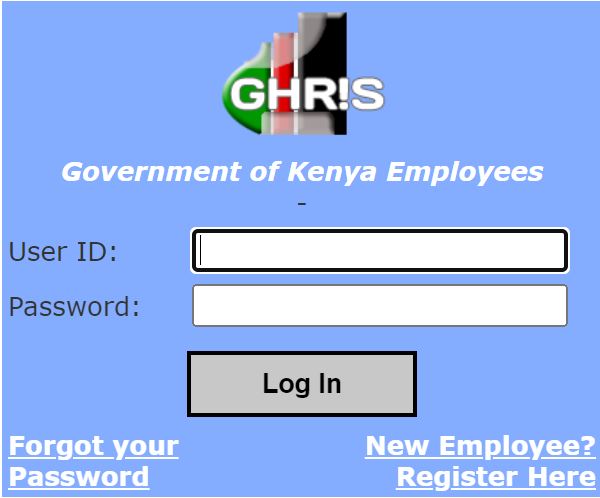
GHRIS Password Reset 2026: How to Recover Your Login Without Stress (Step-by-Step Guide)
Imagine it is the night before salaries are processed. You need to approve leave for your junior officer, but you cannot log into GHRIS. Your password fails. The reset link never arrives. And your HR officer is unreachable until morning.
This is not a rare edge case. It happens to tens of thousands of Kenyan public servants every single month — teachers, civil servants, county staff, pensioners, and HR officers alike.
The Government Human Resource Information System (GHRIS) is the digital backbone of Kenya's public sector. It manages payroll, pension, leave, career records, and tax documents for national and county government employees. But for all its power, its password recovery system has always been the weak link that sends people into a panic.
At Cyber Mfukoni (https://www.cybermfukoni.co.ke/), we assist public servants with GHRIS access issues daily. This 2026 updated guide draws from real cases we have handled — from simple password resets to full manual account recovery. By the end of this article, you will know exactly how to get back into your account, no matter what situation you are in.
What You Will Need Before You Start
Do not begin the reset process without having these ready:
Your National ID number
Your GHRIS Personnel Number — check any old payslip if you have forgotten it
Access to the email or phone number registered in GHRIS
A stable internet connection
A supported browser — Chrome or Mozilla Firefox (Internet Explorer and older Edge versions are not supported)
If you are missing your Personnel Number and do not have an old payslip handy, Cyber Mfukoni can retrieve and print one for you (https://www.cybermfukoni.co.ke/government-agencies/tsc-teachers-service-commission/service/ghris-payslips) — walk in with your National ID and we will sort you out on the spot.
Why Does GHRIS Keep Saying "Invalid Password"?
Before jumping straight to the reset, it helps to understand why the error is happening in the first place. In most cases, the cause is one of the following:
1. Caps Lock or Keyboard Layout Issues
GHRIS passwords are case-sensitive. It is surprisingly easy to accidentally enable Caps Lock, especially on a phone keyboard. Some users also unknowingly switch their keyboard language to French or Arabic, which changes key mappings entirely.
Quick check: Look at your Caps Lock light before typing. If you are on a phone, tap the Shift key to confirm you are in lowercase mode.
2. System Auto-Lock After 3 Failed Attempts
GHRIS temporarily locks your account for 30 minutes after three consecutive wrong password entries. This is a deliberate security feature. If you have been guessing, stop — wait it out before trying again.
3. Expired Password
GHRIS enforces mandatory password changes every 90 days. If you ignored those reminders, your old password is no longer valid. This is the most common cause we see at Cyber Mfukoni (https://www.cybermfukoni.co.ke/).
4. Deactivated Account
If you transferred to a new ministry, changed departments, or left government service, your HR officer may have deactivated your login. This requires manual reactivation — no amount of password resets will fix it from your end.
In roughly 80% of cases, a simple self-service password reset resolves the problem completely.
Step-by-Step GHRIS Password Reset Process (2026 Updated)
Follow these steps in order. Do not skip any.
Step 1 — Access the Official GHRIS Portal
Open your browser and navigate to the official portal at https://www.ghris.go.ke/
Security Warning: Fake GHRIS portals exist specifically to steal login credentials. Always verify the URL shows ghris.go.ke — not .com, .net, or any variation. If you are ever unsure whether a link is safe, the cybersecurity guidelines published by the ICT Authority Kenya (https://www.icta.go.ke/) provide clear guidance on identifying phishing sites.
Step 2 — Click "Forgot Password?"
On the login page, just below the password field, you will see the link: Forgot Password?
Click it. You will be redirected to the Account Recovery page.
Step 3 — Enter Your GHRIS Username or Personnel Number
You will be presented with two options:
Enter your GHRIS username — the one you chose during registration
Enter your Personnel Number — this is the recommended option because it never changes
Your Personnel Number appears on every GHRIS payslip under the "Staff Details" section. If you cannot locate a payslip right now, Cyber Mfukoni can retrieve and print one for you (https://www.cybermfukoni.co.ke/government-agencies/tsc-teachers-service-commission/service/ghris-payslips) using your National ID.
Click Next.
Step 4 — Choose Your Recovery Method
GHRIS will ask how you want to receive the reset link:
Option A — Email: Faster, and the link is easier to use. Only works if your registered email address is still active.
Option B — SMS: More reliable if you still have access to your registered phone number.
Important: If you have changed your phone number and never updated it in GHRIS, SMS will fail. In that case, skip ahead to the Manual Recovery section below.
Select your preferred method and click Send Code.
Step 5 — Enter the One-Time Password (OTP)
A 6-digit OTP will arrive within 2 to 5 minutes.
Email OTP: Check your spam or junk folder if it does not appear in your inbox.
SMS OTP: Wait the full 5 minutes before requesting a new one. Requesting multiple codes too quickly can lock the system.
Enter the OTP in the provided field and click Verify.
Step 6 — Create a New Strong Password
Once verified, you will reach the New Password page. GHRIS requires your new password to meet these exact criteria:
At least 8 characters long
One uppercase letter (A–Z)
One lowercase letter (a–z)
One number (0–9)
One special character ($, #, @, !, etc.)
Must not match any of your last 5 passwords
Example of a strong GHRIS password: Nairobi@2026G
Confirm the password and click Reset Password. You will see a green confirmation banner: "Password reset successful. Please login."
Step 7 — Log In With Your New Password
Return to the main login page at https://www.ghris.go.ke/. Enter your username (or Personnel Number) and your new password.
You are back in.
[Image 2: GHRIS dashboard after successful login, showing Payslip, Leave, and Pension menu options]
What If the Online Reset Fails? (Manual Recovery)
If the self-service reset fails because you no longer have access to the registered phone or email, the OTP never arrived, or your account has been deactivated, you will need to go through Manual Recovery.
This is not the end of the road — it just requires a short visit to your HR office.
Visit Your HR or Payroll Office
GHRIS system administrators are embedded within the Human Resource offices of each ministry, department, county, or agency. They are the only people authorised to reset accounts that cannot be recovered online.
What to bring with you:
A simple written request letter (no specific format required)
Your National ID — original and a photocopy
Your staff ID card
Any old payslip that shows your Personnel Number
The HR officer will verify your identity, reset your password manually, and provide your temporary login credentials. Processing time varies from one hour to three working days depending on the queue at your office.
If you are a teacher and need TSC-linked GHRIS support, Cyber Mfukoni's TSC services team (https://www.cybermfukoni.co.ke/government-agencies/tsc-teachers-service-commission) can guide you through the right channels and help you prepare your supporting documents before you make that trip.
How to Avoid GHRIS Password Problems in the Future
Once you are back in, take five minutes to make sure this never happens again.
1. Use a Password Manager
Free tools like Google Password Manager or Bitwarden store your GHRIS credentials securely and auto-fill them when needed. You never have to remember the password itself — just the master password to your password manager.
2. Update Your Recovery Contacts Right Now
This is the single most impactful thing you can do. While logged in, go to My Profile, then Contact Details, and update both your personal email address and current phone number before saving. Most GHRIS lockouts we handle at Cyber Mfukoni (https://www.cybermfukoni.co.ke/) could have been avoided if the user had updated their contacts when they changed phone numbers.
3. Set a 60-Day Calendar Reminder
GHRIS forces a password change every 90 days. Set your own reminder for every 60 days so you are never caught off guard. Your phone's calendar app takes 30 seconds to set this up.
4. Never Share Your Password
Not with your secretary. Not with IT support over the phone. Not via WhatsApp. GHRIS logs every login attempt, including the IP address and timestamp. If someone else accesses your account and makes unauthorised changes, it is traced back to your credentials.
What to Do Immediately After Resetting Your Password
Once you are back inside GHRIS, do not just close the tab. Take care of these things first.
1. Download Your Latest Payslip
Go to Payroll, then Payslip, select the current month, and download the PDF. Save it to both your phone and computer. Your payslip contains your Personnel Number, ministry details, and full salary breakdown — all of which you may need for bank loans, leave applications, and KRA tax filing. If you want to understand your deductions in detail, our guide on everything you need to know about GHRIS (https://www.cybermfukoni.co.ke/blog/everything-you-need-to-know-about-ghris-in-kenya-a-human-resource-revolution) covers every section of the payslip clearly.
2. File or Check Pending Leave
Go to Leave Management, then New Application, and submit any pending leave before the financial year closes on June 30. Unused leave that is not formally applied for can complicate your employment records.
3. Download Your P9 Form for KRA
Under Tax Details, click Download P9 Form, select the relevant tax year, and save the PDF. You will need this when filing your annual returns on iTax (https://itax.kra.go.ke/). If you need help with the actual filing process, our guide on how to file KRA taxes in Kenya (https://www.cybermfukoni.co.ke/blog/kra-pin-registration-requirements-in-kenya-the-complete-guide-youve-been-looking-for) walks you through it from start to finish.
4. Verify Your Pension Details
Under Pension, click Member Statement and confirm your years of service and monthly contributions. Any errors should be reported to your HR department immediately — discrepancies that go unnoticed for too long can seriously affect your retirement benefits.
[Image 3: GHRIS side menu highlighting Payslip in red, Leave in blue, and Pension in green]
Common GHRIS Login Errors and Their Fixes
"Invalid credentials" — Wrong username or password — Use the Forgot Password link to reset
"Account locked" — 3 or more failed login attempts — Wait 30 minutes, then reset your password
"User inactive" — HR deactivated your account — Visit your HR office in person
"Session expired" — You were idle for too long — Refresh the page and log in again
"OTP expired" — Took more than 10 minutes to enter the code — Request a new OTP
"User not found" — Wrong Personnel Number entered — Double-check your payslip for the correct number
[Image 4: Flowchart — Forgot password → Do you have your Personnel Number? → Did you receive the OTP? → Reset successful → Update recovery contacts]
Frequently Asked Questions
Can I reset my GHRIS password without my Personnel Number?
Yes — if you remember your GHRIS username and still have access to your registered email or phone number, you can use those instead. If you have forgotten both your username and Personnel Number, a visit to your HR office is the only route. Alternatively, Cyber Mfukoni can retrieve your Personnel Number (https://www.cybermfukoni.co.ke/government-agencies/tsc-teachers-service-commission/service/ghris-payslips) from the system using your National ID.
How long does GHRIS take to send the reset OTP?
Usually 2 minutes. If you have not received it within 10 minutes, check your spam folder for email, or request a new code for SMS. After three failed OTP requests, the system locks your account for one hour.
Why is GHRIS showing "User Not Found"?
This typically means one of three things: you entered the wrong Personnel Number, your employment was terminated and your account deleted, or you never completed GHRIS registration. Confirm with your HR department in all three cases.
Can former government employees access GHRIS?
No. Once you leave government service, your HR deactivates your login. Pension records after exit are managed through a separate portal via the Public Service Commission (https://www.publicservice.go.ke/).
Is it safe to use a cyber café computer to access GHRIS?
We strongly advise against it. Public computers may have keyloggers or be shared across many users. If you must use one, log out completely when done and change your password the next time you are on a private device. You can also visit Cyber Mfukoni (https://www.cybermfukoni.co.ke/blog/online-cyber-in-kenya-what-it-means-and-how-it-makes-things-easier) where we handle GHRIS securely on your behalf.
Why GHRIS Account Security Matters More Than You Think
Your GHRIS account holds more sensitive information than most people realise — your full salary breakdown and bank account details, NSSF and NHIF deduction records, next of kin information, pension contribution history, and your full employment and promotion records.
A compromised GHRIS account can lead to salary diversion or full identity theft. The ICT Authority Kenya's cybersecurity guidelines for public officers (https://www.icta.go.ke/) detail the specific risks facing civil servants and the steps agencies are expected to take to protect their staff.
Do not save your password in a plain notes app on your phone. Do not share your login credentials via WhatsApp or SMS. Do not use public computers to access GHRIS without logging out completely after every session.
Do log out after every session, especially on shared or office computers. Enable two-factor authentication if your ministry supports it. Report any suspicious activity — unrecognised logins or changed personal details — to your HR department immediately.
For anyone who regularly processes government documents and wants a broader picture of staying safe online, our article on online cyber services in Kenya (https://www.cybermfukoni.co.ke/blog/online-cyber-in-kenya-what-it-means-and-how-it-makes-things-easier) covers digital best practices that every Kenyan should know.
Need Help Right Now? Cyber Mfukoni Has You Covered
Not everyone has reliable internet at home. Not everyone is comfortable navigating government portals alone. And not everyone has time to troubleshoot a locked account when there is actual work to be done.
That is exactly why Cyber Mfukoni exists.
We are a Nairobi-based consultancy that specialises in helping Kenyans access government digital services — fast, accurately, and without the frustration. Our team handles GHRIS issues every single day, including:
GHRIS registration for new government employees — https://www.cybermfukoni.co.ke/government-agencies/tsc-teachers-service-commission/service/ghris-registration
Payslip printing for any month, any year — https://www.cybermfukoni.co.ke/government-agencies/tsc-teachers-service-commission/service/ghris-payslips
P9 form download and printing for KRA filing
Login recovery assistance when the self-service option fails
Leave application support through TSC and GHRIS portals — https://www.cybermfukoni.co.ke/government-agencies/tsc-teachers-service-commission/service/tsc-services-leave-application-document-upload-online-payslips-leave-application
Document upload assistance for HR submissions
Beyond GHRIS, we also assist with KRA PIN registration (https://www.cybermfukoni.co.ke/blog/kra-pin-registration-requirements-in-kenya-the-complete-guide-youve-been-looking-for), NTSA services and traffic fines (https://www.cybermfukoni.co.ke/blog/how-to-check-for-traffic-offenses-and-pay-fines-online-in-kenya), NHIF and SHA updates, business registration, and much more. We are a one-stop digital services hub for Kenyans who want things done right the first time.
You can reach us through the website at https://www.cybermfukoni.co.ke/ or simply walk into our Nairobi office. No appointment needed.
Conclusion: You Are Back in Control
GHRIS password issues are frustrating — but they should never derail your entire day. In most cases, the seven-step self-service process above will have you back inside your account within ten minutes. For the cases where that does not work, your HR office and Cyber Mfukoni are both available to step in.
Here is what to do right now:
Try the online reset at https://www.ghris.go.ke/
If it works, immediately download your payslip and update your recovery contacts
If it does not work, contact your HR office or visit Cyber Mfukoni (https://www.cybermfukoni.co.ke/) for same-day assistance
Share this guide with a colleague who keeps struggling with GHRIS — you will save them a lot of stress
Cyber Mfukoni is an independent private consultancy and is not affiliated with, endorsed by, or part of the Government of Kenya, GHRIS, TSC, or any other state agency. Government services can be accessed directly through official portals such as ghris.go.ke. Fees charged by Cyber Mfukoni cover professional assistance in addition to any applicable government charges.
About the author
Julius
IT & E-Government Services Specialist
Julius is a Nairobi-based IT specialist with over a decade of hands-on experience navigating Kenya's digital government platforms — eCitizen, NTSA TIMS, KRA iTax, and the Business Registration Service (BRS). He has helped thousands of individuals and businesses cut through the paperwork to access government services online and writes practical, step-by-step guides drawn from that day-to-day experience.
Related Agency
Consultation Services
Consultation
Professional consultation services for all government processes, applications, and services. Get expert guidance, personalized assistance, and step-by-step support for any government-related matter not covered by standard services.
View Agency ServicesRelated Services
Need Expert Assistance?
Our team can handle the entire application process for you.